
Surcharge (and other customer fees)
Overview
Merchants using Customer Fees (surcharge, convenience fee, or miscellaneous fee) can now apply those fees to transactions processed through Collect Checkout hosted payment pages. This feature extends existing Customer Fees functionality to Collect Checkout, giving merchants a consistent way to recover processing costs or pass through ancillary charges across their hosted payment experience.
Supported Fee Types
All three Customer Fee types are supported in Collect Checkout, and they can be used in any combination the gateway allows.
| Fee Type | Credit Cards | Other Card Types | Checks (ACH) |
|---|---|---|---|
| Surcharge | Applied | Not applied | Not applied |
| Convenience Fee | Applied | Applied | Applied |
| Miscellaneous Fee | Applied | Applied | Applied |
Convenience fees and miscellaneous fees apply to all supported payment types. Surcharges, in keeping with card brand rules, apply only to credit card transactions.
Before You Enable Surcharging
Merchants are responsible for surcharging in accordance with the card brand rules and the laws of the states where payments are accepted. NMI provides core surcharge support by applying surcharges only to credit card transactions and capping fees at 3%.
How It Works
Step 1: Configure fees at the gateway level
Customer Fees must first be configured at the gateway level before they can be applied to a Collect Checkout link.
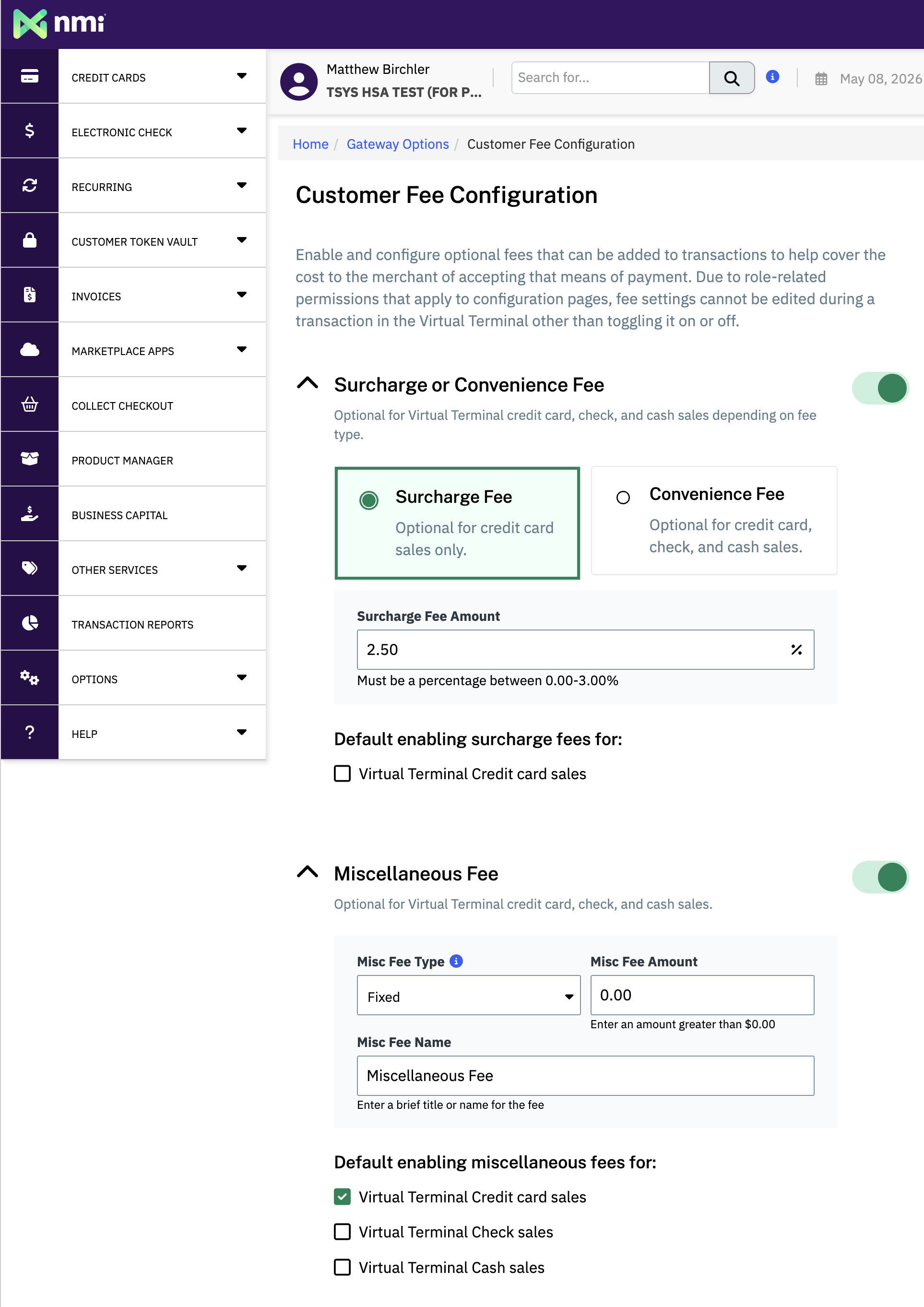
- Navigate to Settings > Customer Fee Configuration.
- Configure the desired fee types and amounts (surcharge, convenience fee, miscellaneous fee, or any eligible combination).
Step 2: Enable the fee on a Collect Checkout link
Once fees are configured at the gateway level, they can be applied to a new Collect Checkout link.
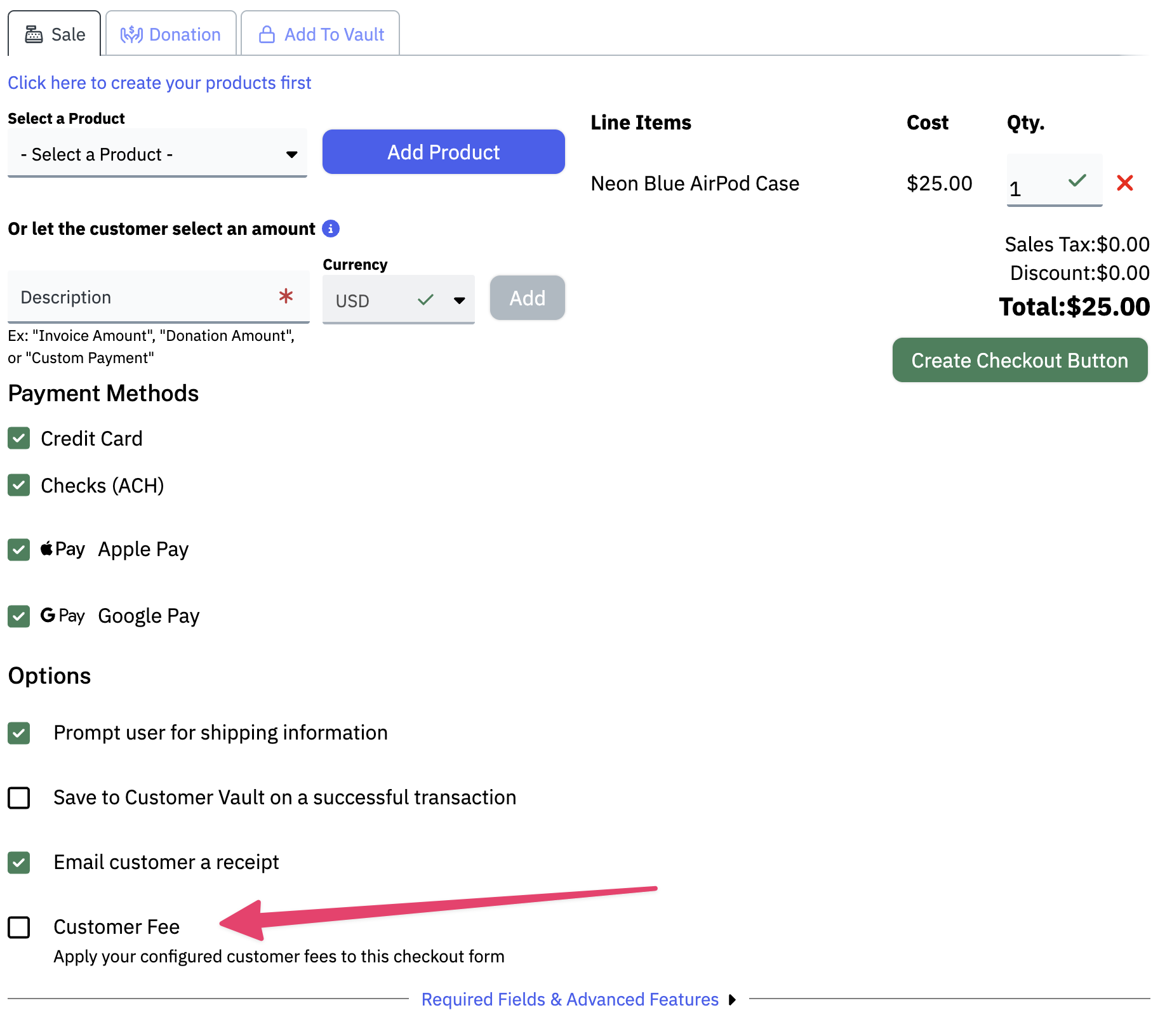
- Open the Collect Checkout button generator.
- When creating a new button, enable the Customer Fee option.
- Generate the link as usual.
Any fees configured at the gateway level will be applied to the resulting Collect Checkout link.
Per-link configuration
Customer Fees are configured on a per-link basis, not at the account level. Merchants can have some Collect Checkout links that apply fees and others that do not, providing flexibility to match different business scenarios.
Note: Links created before Customer Fees were available will not update to display fees. To add fees to an existing payment scenario, generate a new link for that scenario with the Customer Fee option enabled.
Surcharge Behavior on the Checkout Page
Because surcharges only apply to credit cards, the Collect Checkout page handles them dynamically so customers always see an accurate total before they pay.
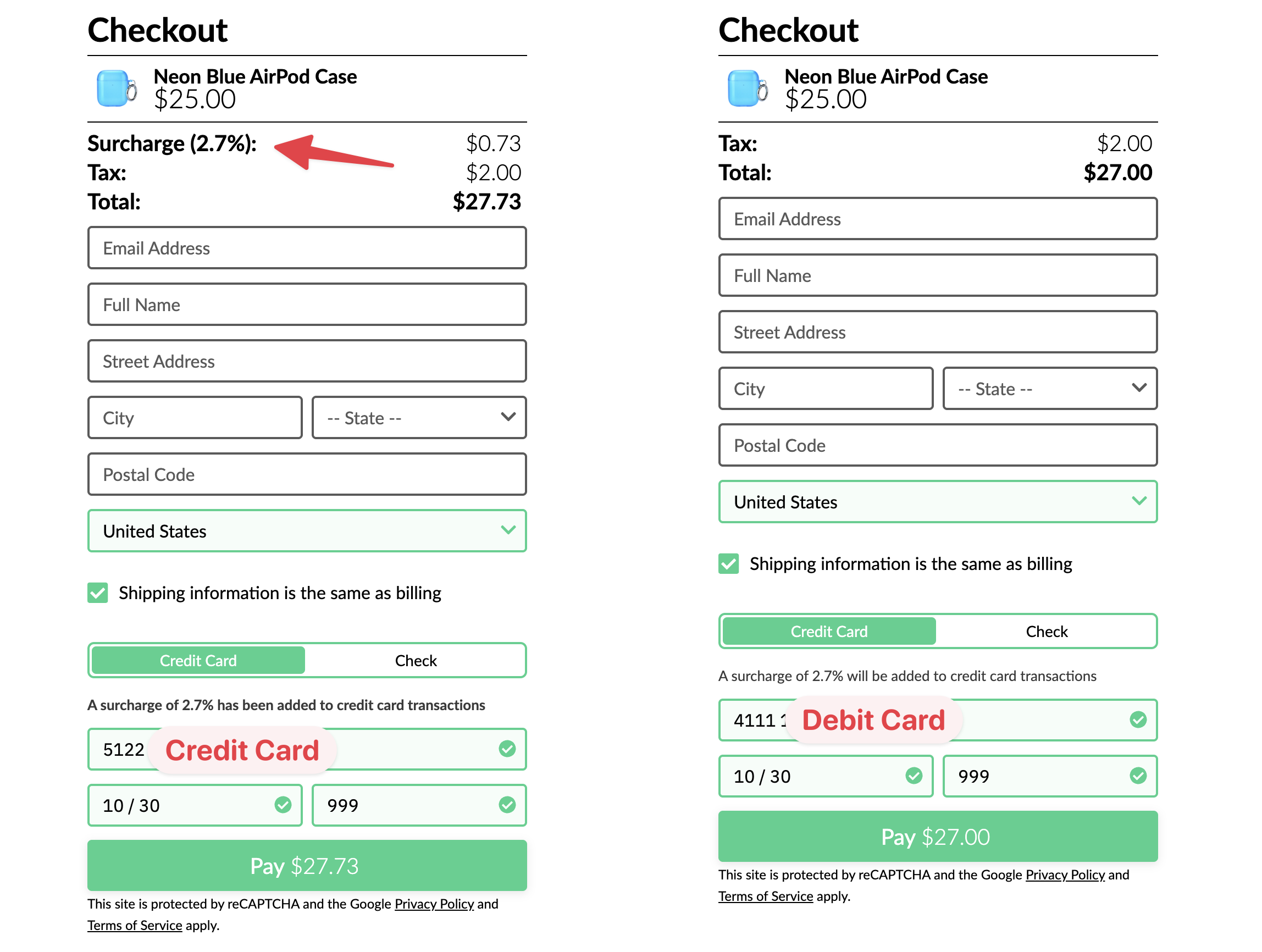
- On page load, a disclaimer is displayed indicating that a surcharge will be applied to credit card transactions.
- When the customer enters a card number, a real-time BIN lookup determines the card type.
- If the card is identified as credit, the surcharge amount is added and the UI updates to reflect the new total before the customer pays.
- If the card is identified as debit, or if the customer pays via ACH, no surcharge is added.
This ensures customers see accurate totals before completing payment and that surcharges are only assessed where permitted.
Live Fee Configuration
Fee and surcharge values are pulled live from the merchant's gateway account each time a customer loads a Collect Checkout page. This means:
- If a merchant updates a fee in their gateway settings (for example, lowering a surcharge from 3% to 2.5%), the change is reflected automatically on every Collect Checkout link configured to charge that fee.
- Merchants do not need to regenerate buttons or links when fee amounts change.
Surcharge Plus and Surcharge Premium
Merchants enrolled in Surcharge Plus or Surcharge Premium get a surcharge determined per card rather than the flat percentage configured in their Customer Fee settings. Many variables are taken into account, from card type to acceptance rate to transaction location, and all of these combine to determine the exact right surcharge amount for that transaction.
Everything else on the page behaves as described above: the surcharge still appears as its own line item, and the total still updates once the customer has entered a card.
In the Collect Checkout button generator, the Customer Fee option is enabled by default for these merchants.
Known Limitations
Apple Pay and Google Pay are not available when surcharge is enabled. Because the amount billed changes after the card type is identified, the Apple Pay and Google Pay buttons cannot be used on links that surcharge. A workaround may be explored in the future.
Updated 1 day ago