
User management & access
User management is an admin-only function. Only users with the PGP-ADMIN role can add or manage users.
User management is accessible via the cog icon in the top-right corner of HEM, under User Management.
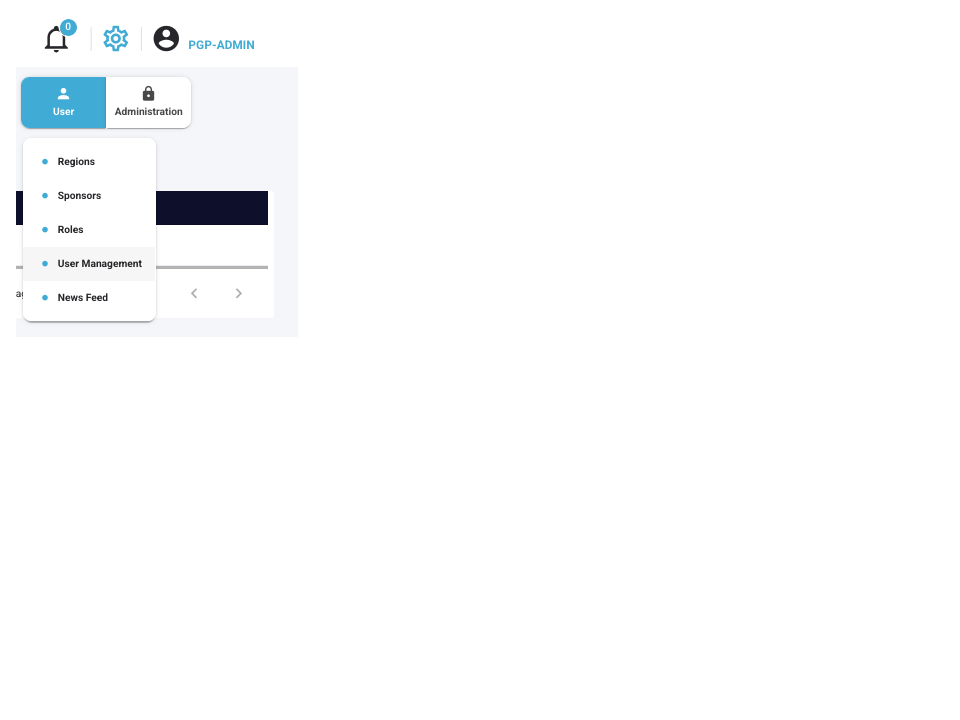
From the user management screen you can see details of all users currently added to every sponsor your own account has access to.
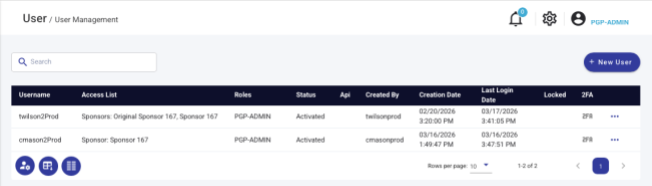
Clicking the ⋯ next to a user opens a menu allowing you to:

- Edit user details
- Reset 2FA
- Set a new password
- Send a reset-password email
- Deactivate the account
- Delete the account
Create a new account
To create a new user, click the + New User button.
This opens the add-user dialog, where you input the new user's details and assign their access. NMI imposes no requirements around input — you only need to fill in the fields that HEM requires or that you wish to provide. Required fields are:
- User Name
- Email — for the user being added
- Role — defines the level of access being granted
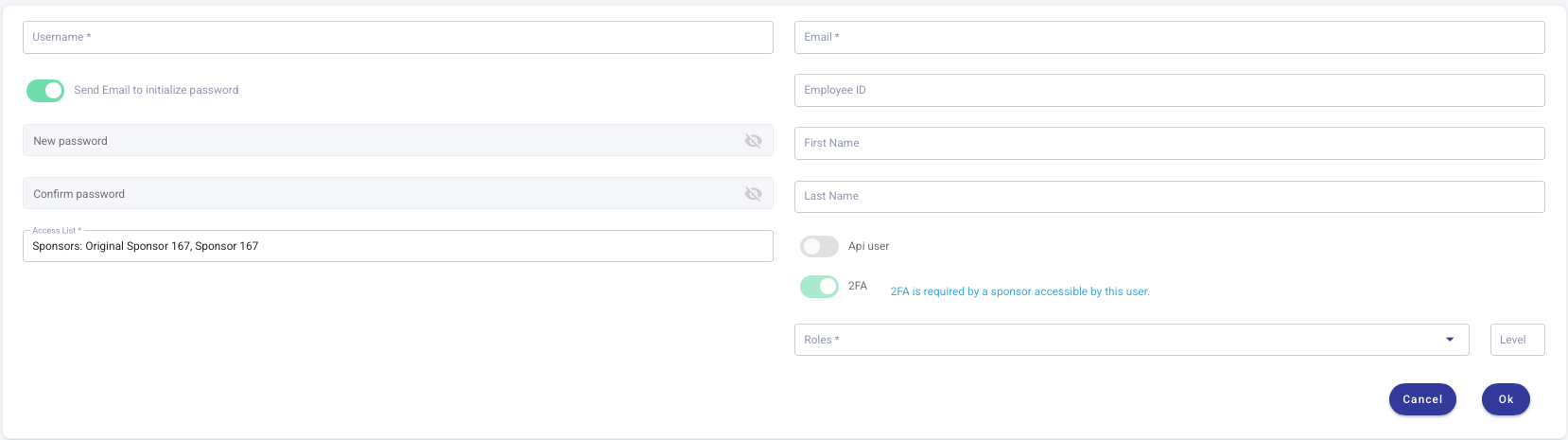
You can either set the new user's password directly, or have HEM send them an email to set their own password and 2FA. This is controlled by the Send Email to initialize password toggle:

Defining access
There are two parts to defining access: sponsor access and user role.
Sponsor access
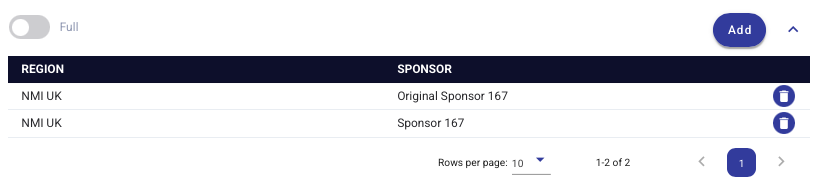
By default, new users are granted access to all sponsors that the admin creating them has access to. To adjust this, click the Access List table to begin editing — click the trash-bin icon next to a sponsor to remove it, or click Add to add one.
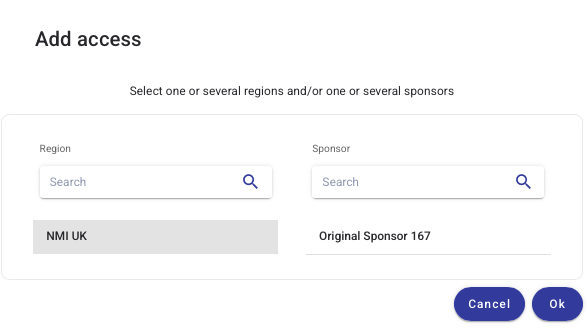
When adding, select the NMI UK region (all NMI partner sponsors sit under this region), then choose from the list of sponsors your account has access to.
User role
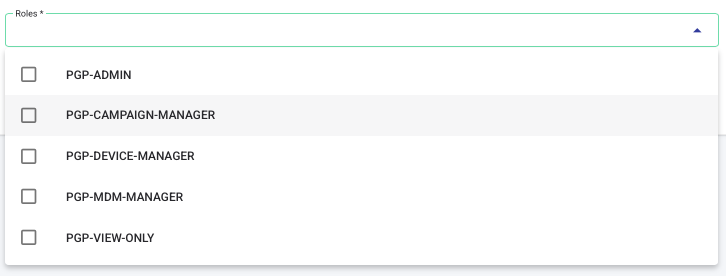
To set the user's role, click the Roles dropdown and select the roles you wish to grant. You can select as many as you want. The access granted by each role is described in Role access levels.
Once you're satisfied with the user's account information, click Ok to complete the process.
Viewers
The PGP-VIEW-ONLY role grants a user "view" access to your HEM estate. They can view all pages except the User Management page.
Updated about 1 month ago