
Setup for development
Development Axium devices operate just like a normal Android device — once plugged into your development machine they appear in Android Studio. You also use the ChipDNA Mobile SDK exactly as you would in a standard semi-integrated environment.
Device modes
When selecting a device it's important to get the correct configuration for your purpose. Axium devices come in two variants.
Development
Development devices are injected with test keys and can only be used in the Test environment. They are intended for building and testing applications directly on the device.
These devices:
- Ignore application signature validation
- Can be connected to Android Studio
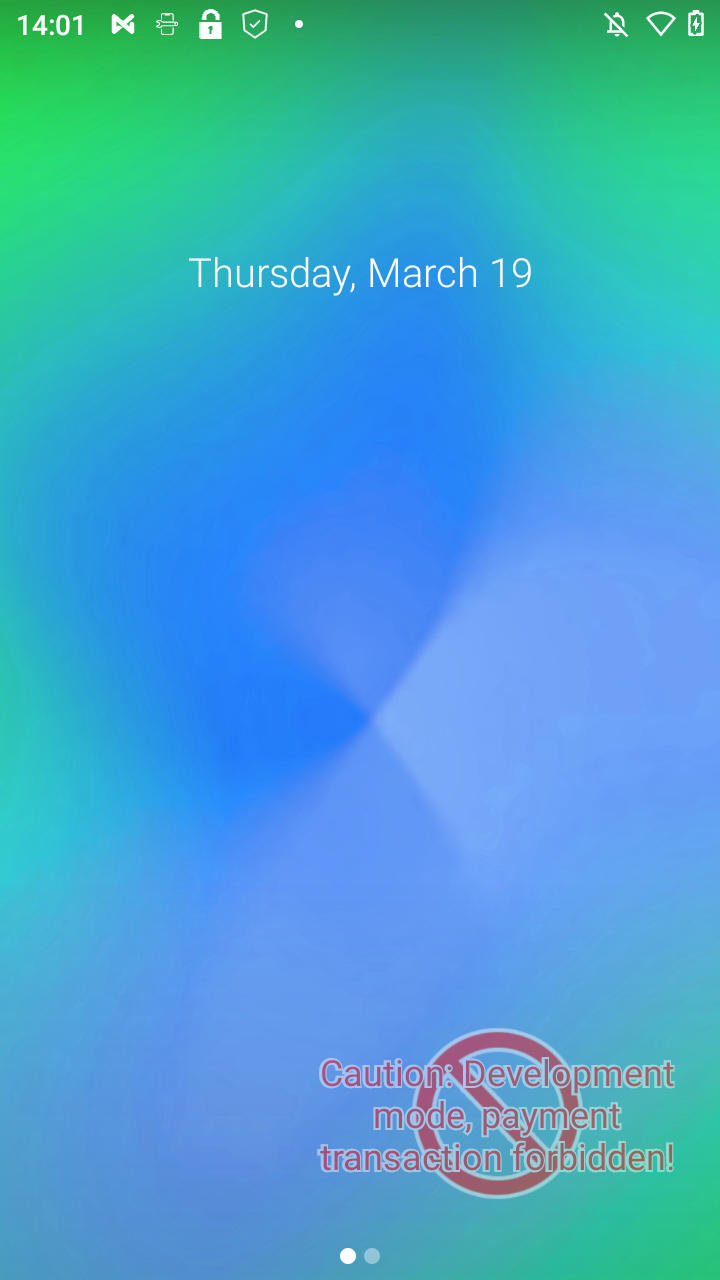
- Display a warning message on the home screen
Once a device has been set to Development mode, it cannot be reverted to Production mode without being returned to Ingenico.
Development devices can be identified by a flashing warning sign on the home screen:
Production
Production devices are injected with production keys and can be used in both Test and Production environments. They are intended for standard usage where no on-device development is required.
These devices:
- Only run applications signed via Ingenico's e-signing portal (see Application signing)
- Do not appear in Android Studio
- Cannot be used for development
Pre-requisites
- Android SDK target 29
- Android Studio
- ChipDNA Mobile SDK v5.3.1 or above
Integration considerations
Developing on a development Axium device is very similar to developing a standard Android application, with a few considerations.
Android library restrictions
While the version of Android running on Axium devices is based on the standard Android distribution, some standard Android libraries have been removed in order for the OS to meet PCI security requirements.
Connection
To connect to the TransactionInitiatorUI application from an application running on the same device, use the following connection properties:
- Connection type: TCP/IP
- IP address:
0.0.0.0 - Port:
8088
To set this within the ChipDNA Mobile SDK:
Parameters requestParameters = new Parameters();
requestParameters.add(ParameterKeys.PinPadConnectionType, ParameterValues.TcpIpConnectionType);
requestParameters.add(ParameterKeys.PinPadName, "Axium-" + Build.MODEL);
requestParameters.add(ParameterKeys.PinPadIpAddress, "0.0.0.0");
requestParameters.add(ParameterKeys.PinPadPort, "8088");

ChipDnaMobile.getInstance().setProperties(requestParameters);
Returning your application to the foreground
When you make calls to the ChipDNA Mobile SDK, the Ingenico ARC UX application is brought to the foreground to handle transaction processing. This behaviour is controlled by Ingenico, and NMI cannot return the integrating application to the foreground automatically.
While the ARC UX application is in the foreground, your application continues to run in the background and will still receive standard updates from the ChipDNA Mobile SDK.
If your application needs to regain control and return to the foreground, call the method below from your transaction listener — typically at the end of onTransactionFinishedListener (and, if required, on the GetCardDetailsCompleted transaction update).
Two points to note:
- Use an
IntentwithFLAG_ACTIVITY_REORDER_TO_FRONTas the primary approach.moveTaskToFrontis increasingly restricted on modern Android and is used here only as a fallback. - A short delay is recommended before bringing your application forward, so the ARC UX application can finish its own screen teardown first.
The method must be a member of the Activity you want to bring to the foreground, so that this and taskId resolve correctly:
/**
 * Returns the integrating application to the foreground after a transaction
 * completes. Call from your transaction listener (e.g. onTransactionFinishedListener).
 *
 * @param delayMs delay before returning to the foreground, allowing the ARC UX
 *                application to finish its screen teardown first.
 */
private fun bringAppToForeground(delayMs: Long = 500) {
    Handler(Looper.getMainLooper()).postDelayed({
        try {
            // Preferred: re-order this app's existing task to the front.
            val intent = Intent(this, YourActivity::class.java).apply {
                addFlags(Intent.FLAG_ACTIVITY_REORDER_TO_FRONT or
                         Intent.FLAG_ACTIVITY_SINGLE_TOP)
            }
            startActivity(intent)
        } catch (e: Exception) {
            // Fallback: move the task to the front via ActivityManager.
            val activityManager =
                getSystemService(Context.ACTIVITY_SERVICE) as ActivityManager
            activityManager.moveTaskToFront(
                taskId, ActivityManager.MOVE_TASK_NO_USER_ACTION)
        }
    }, delayMs)
}
Call it from your transaction-finished handler:
override fun onTransactionFinishedListener(parameters: Parameters) {
    // ... your existing transaction handling ...
    bringAppToForeground()
}
The following permission must also be added to your application's manifest file:
<uses-permission android:name="android.permission.SYSTEM_ALERT_WINDOW"/>From Android API 29, a background application is prevented from launching activities or moving its task to the foreground. The
SYSTEM_ALERT_WINDOWpermission exempts your application from this restriction, which is what allows the code above to work. This is a special permission that must be granted on the device — either by the user ("Display over other apps") or through your MDM profile. You can verify it at runtime withSettings.canDrawOverlays(context); if it returnsfalse, the calls above will silently have no effect.
Updated about 1 month ago