
Software library & campaigns
The PGP-CAMPAIGN-MANAGER role grants access to the Software Library and the Campaigns sections of HEM. In the Software Library you upload your APKs to HEM; in the Campaigns section you choose how that software is applied to terminals.
Upload software
Upload your APK from the Library section of HEM. On the Software Package tab, click the + Software Package button and select your APK in the file browser.
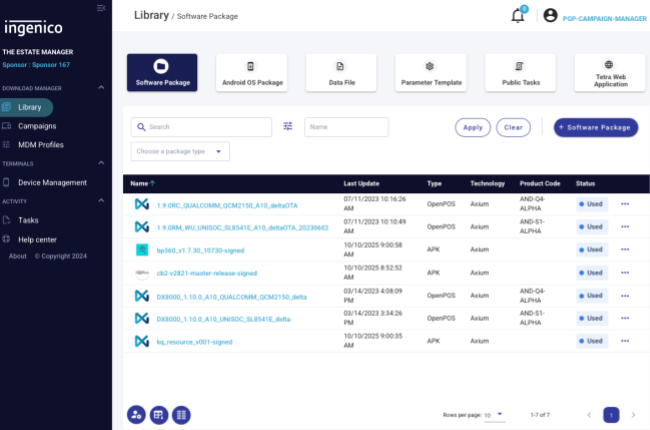
If you intend to distribute your APK to production Axium devices, it must be signed with a valid e-card from Ingenico's e-signing portal. See Application signing.
Campaign creation
In the Campaigns section, click the + New Campaign button to open the campaign creation dialog.
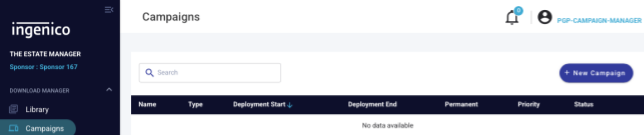
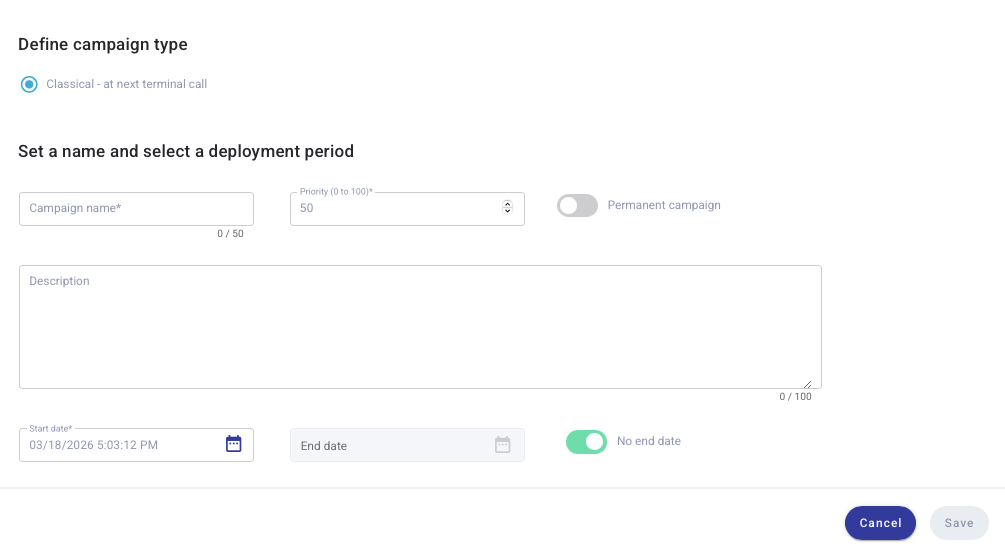
A campaign requires:
- Campaign Name — what you would like the campaign to be called.
Useful to know:
- Permanent Campaign — when enabled, the campaign is applied to devices even if it has been applied to them previously. This does not mean the same software is installed multiple times — only that it is re-installed if removed.
- Priority — you can set multiple campaigns against the same device or estate. They run in priority order, with 100 being the highest priority.
Updated 3 months ago
What’s Next
Did this page help you?