
Hosted Estate Manager (HEM)
This section provides a brief overview of the structure and key concepts used in HEM, and how to request access.
HEM is an Ingenico-owned product and may be subject to change without prior notice to NMI. The information here is intended as a starting point, covering basic concepts and common tasks. For more detailed guidance, refer to Ingenico's official documentation, available within HEM via the Help center item in the navigation menu.
HEM concepts
Users and roles
A user is a member of your organisation that you wish to give access to HEM. PGP-ADMIN is the only role allowed to add new users.
Roles define the level of access a user is granted. A user can hold multiple roles — for example, a single user can be both a PGP-DEVICE-MANAGER and a PGP-CAMPAIGN-MANAGER, allowing them to manage both the devices and the campaigns for those devices. See Role access levels below.
Campaigns
Campaigns allow you to assign Axium software from the software library to devices, ensuring it is installed the next time the device connects to HEM. Within a campaign you can assign software to either individual devices or entire estates, giving you flexibility over software deployment. See Software library & campaigns.
Region
NMI operates at the Region level of HEM. All sponsors, estates, and terminals reside within NMI's region (NMI UK).
Sponsors
Sponsors are the highest-level structure accessible to partners on HEM. Sponsors are linked to a partner ID, which — depending on your integration type — is either:
- CardEase Client ID
- Omni Platform Affiliate ID
Each sponsor holds its own software library, estates, and terminals.
A device is assigned to your sponsor the first time it reaches out to the NMI backend. Once a device is registered on HEM it can be moved between sponsors by an admin or a user holding the PGP-DEVICE-MANAGER role.
Estates
Estates are a way to group terminals, and can contain sub-estates as well as terminals. You can create as many estates as needed and organise your terminals within them as required. Estates let you assign campaigns to groups of terminals instead of selecting terminals individually. See Managing devices & estates.
Terminals
Terminals align with devices. Devices are onboarded onto HEM at the distributor and sit in a holding estate until they connect to the NMI backend. A device is added to a sponsor's default estate when it first connects to the NMI backend.
Call schedule
A call schedule can be assigned to a terminal or an estate, then synced to all terminals below it. By default, all devices are assigned a 24-hour call schedule, meaning every 24 hours the device calls HEM and runs any campaigns assigned to it.
HEM navigation
Once access is granted, the left-hand bar of HEM shows the navigation options. The appearance may vary depending on your access level, as HEM only displays the options available to you.
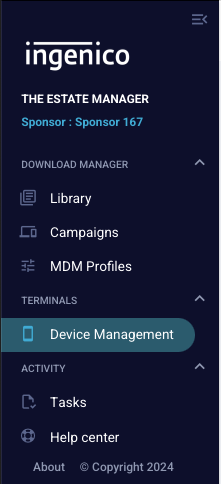
 Library — manage your software library. Upload your Axium-compatible software here. It must be in APK or UNS format and, if you intend to load it onto production devices, signed with a valid Ingenico e-signing card.
 Campaigns — manage campaigns. Campaigns let you set software uploaded to the software library to be installed onto devices within your estate.
 Device Management — view all estates and terminals associated with your current sponsor. From here you can move devices between estates and configure call schedules.
 MDM Profiles — create and manage MDM profiles, controlling aspects of your devices' OS settings such as Wi-Fi network settings and boot launching of an application.
- User Management — available under the cog icon at the top right of the page. Only users with the PGP-ADMIN role have access. See User management & access.
Sponsor selection
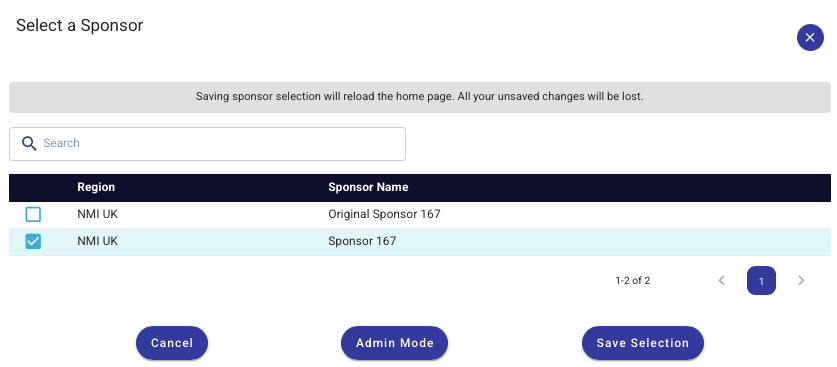
If your user account has access to multiple sponsors, you can select which one you are viewing by clicking on the current sponsor name.
Requesting access
Access to HEM incurs an additional cost. To request access, please contact your Account Manager.
To ensure the correct level of access is provisioned, include the following in your request:
- Account name
- Client/Affiliate ID(s) — if known, otherwise the serial number of a registered device
- Initial admin details: email, first name, last name
- E-signing portal account details (for Pushers and Validators): email, first name, last name
Once provisioned, an email is sent to the provided address to complete setup of the admin account. The admin user can then grant access to additional users as required.
Device onboarding process
All terminals are boarded onto HEM at the point of distribution. Until a device is first used, it remains in a holding estate that is only accessible to NMI personnel. Attempting to add a device that has already been boarded onto HEM will fail.
When the device is first registered and configured with the NMI backend, it is automatically moved to a default estate under a sponsor associated with the NMI account using the device.
A sponsor is linked to a NMI partner ID, which is one of the following:
- CardEase Client ID
- Omni Platform Affiliate ID
If you use devices across multiple Client or Affiliate IDs, you will need access to each corresponding sponsor.
Want to direct devices into an estate you control without tying them to your Client/Affiliate ID? See Partner onboarding with a Partner Code.
Role access levels
The following summarises the predefined roles and the permissions they provide. Access is one of Read, Read/Write/Update, or None.
| Section | PGP-ADMIN | PGP-CAMPAIGN-MANAGER | PGP-DEVICE-MANAGER | PGP-MDM-MANAGER | PGP-VIEW-ONLY |
|---|---|---|---|---|---|
| Software Library | Read/Write/Update | Read/Write/Update | Read | Read | Read |
| Campaigns | Read/Write/Update | Read/Write/Update | Read | Read | Read |
| Device Management | Read/Write/Update | Read | Read/Write/Update | Read | Read |
| MDM Profile | Read/Write/Update | Read | Read | Read/Write/Update | Read |
| User Management | Read/Write/Update | None | None | None | None |
Admin accounts also hold the permissions granted to the other roles. The PGP-VIEW-ONLY role grants view access to every page except User Management.
Updated about 1 month ago