
Managing devices & estates
The PGP-DEVICE-MANAGER role grants access to the Device Management page of HEM. This page lets you manage your terminals and estates, building them into a logical structure to make management easier.
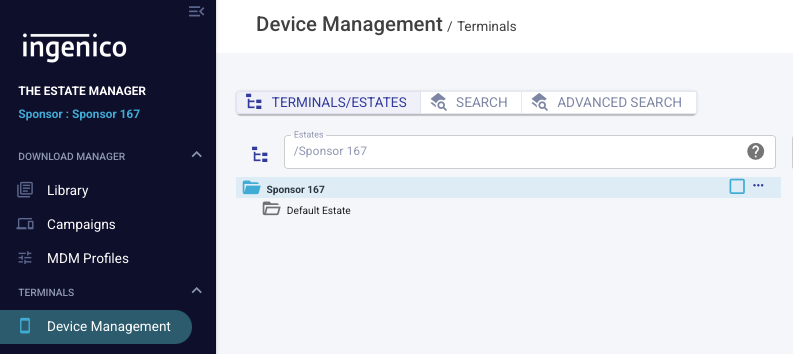
Managing estates
To add a terminal or estate, select the parent estate you want to add it to. This reveals a ⋯ menu to the right of the estate name. Clicking it shows the operations you can perform:
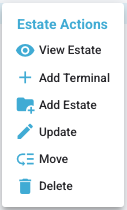
- View Estate — view the details of the selected estate
- Add Terminal — add a new terminal to the estate
- Add Estate — add a new sub-estate
- Update — update the details of the selected estate
- Move — move the selected estate or terminal to a new location
- Delete — delete the selected estate or terminal
Adding estates
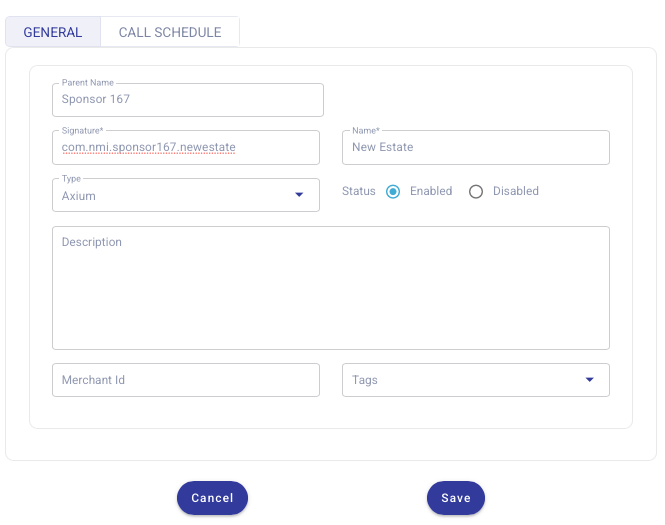
To add an estate, the following information must be provided:
- Estate Name — what you would like the estate to be called.
- Signature — a unique identifier for this estate. NMI recommends using a domain-based identifier (for example
com.nmi.sponsor167.newestate).
All other fields can be filled out as you see fit; NMI places no restrictions on their content. When you are ready, click Save. The new estate appears under the specified parent estate.

Adding a terminal
If you ordered your device through an NMI-approved distributor, you do not need to manually add terminals. New terminals appear in your default estate automatically after their first registration with the NMI platform. Attempting to add a device supplied by an NMI-approved distributor may fail, as it is already registered within the NMI HEM region.
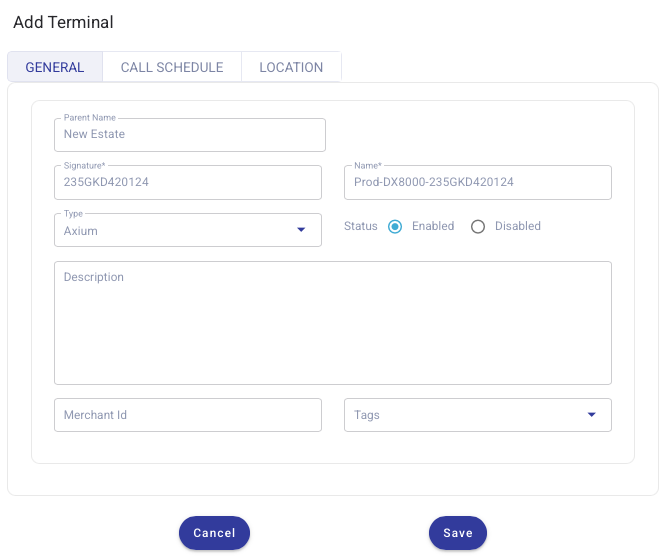
The following is provided for completeness, in case manual terminal creation is required. Adding a terminal is similar to creating an estate. You will be required to provide:
- Terminal Name — the name assigned to the terminal
- Signature — the device's serial number
All other fields can be completed as needed; NMI imposes no restrictions on their content.
Call schedule
The call schedule defines when a device calls home to HEM to check whether updates are required. It can be set against an estate and synced to its terminals, or a terminal can have its own call schedule.
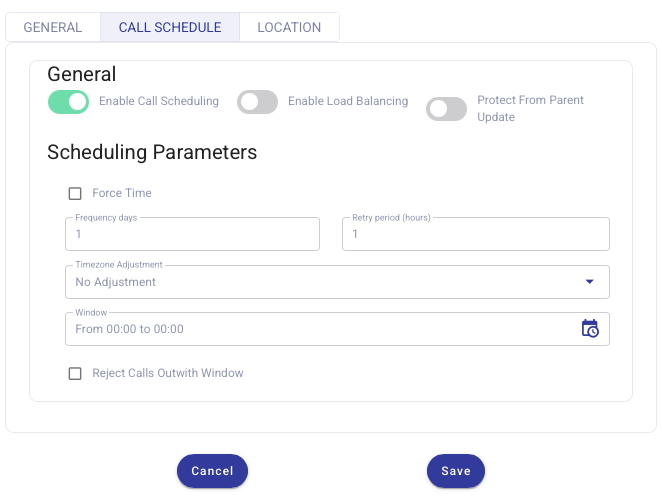
The fields are:
- Enable Call Scheduling — enable or disable call scheduling. A device must call home for call-scheduling updates to take effect.
- Enable Load Balancing — HEM spreads devices across the maintenance window so they don't all call home at once.
- Protect From Parent Update — when enabled, a terminal won't receive call-schedule updates from its parent estates.
- Frequency days — how often the device calls home, in days.
- Retry period — if a HEM call fails, how often a device retries within the call window.
- Timezone Adjustment — adjust the maintenance window to the terminal's local time.
- Window — the maintenance window during which a device calls home.
- Reject Calls Outwith Window — HEM rejects calls that fall outside the maintenance window.
The call schedule is not pushed to the device when saved in HEM — it is only updated on the terminal the next time the device calls home. If call scheduling is disabled on a device, a manual HEM update must be performed to re-enable it.
Setting the call schedule at the estate level applies it to all devices within that estate, as long as those devices don't have their own call schedules applied.
Updated about 2 months ago